> ## Documentation Index
> Fetch the complete documentation index at: https://docs.nudj.cx/llms.txt
> Use this file to discover all available pages before exploring further.
# Creating Posts
> The four-step post studio: basic information, scheduling, interaction settings, and advanced settings
Posts are community announcements, updates, and messages that appear in the member feed. Nudj redesigned the post creation flow (#1123) around the same studio layout used for challenges, rewards, and achievements.
## Start a post
**Engagement -> Posts -> + New Post**, then choose **Start from blank** (or start from a template).
You'll land in the post studio: step sidebar on the left, editor in the middle, preview on the right (#1963, #2148). The top bar holds the **status** dropdown and the save button, labelled **Create** on a new post and **Save** once it exists.
The **language switcher** (#2226) appears in the top bar only on a saved post, and only when your community has more than one language enabled. A single-language community never sees it.
***
## The four steps
Only **Basic Information** is required. The other three are marked **Optional** and can be left at their defaults.
**Post Image** (1440x1440px recommended, square), the **Featured** toggle, **Post Title** (required), and **Post Content**, a rich-text editor (#675).
Click the post image to open **Select Banner Image**, which has three tabs: **Library** (assets already in your community or organisation), **Upload New**, and **Image Gen AI**.
Turn on **Schedule Post** to set a **Start Date & Time** and an optional **End Date & Time**. Leave it off to publish immediately. See [Featured & Scheduled Posts](/admin-guide/posts/featured-and-scheduled-posts).
Toggle **Comments**, **Likes**, and **Post Image Display** on or off for this post. **Reset to Defaults** restores all three to comments on, likes on, and Post Image Display off.
Four collapsible sections: **Tags**, **Campaigns**, **Custom Dark Mode Images**, and **Template Settings**.
***
## Basic Information
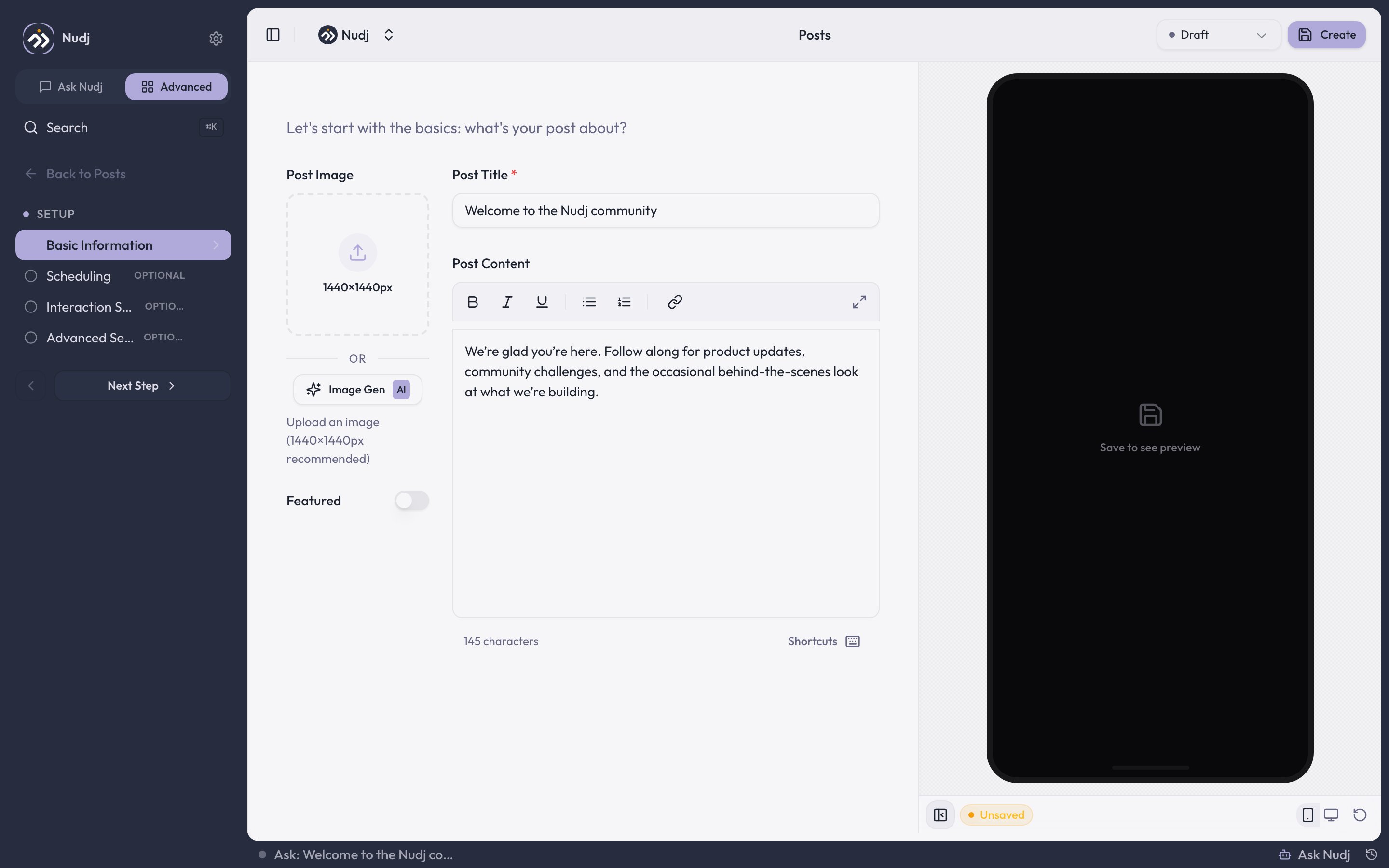 **Post Title** is the only required field. It's marked with a red asterisk and the post won't save without it. **Post Content** is the rich-text body members read in the full-post view.
**The toolbar you see is the short one.** Post Content opens with bold, italic, underline, bullet and numbered lists, and links. Click the **expand** icon at the toolbar's right for the full editor, which adds headings, blockquotes, tables, and inline images. Markdown shortcuts work either way, so typing `# ` starts a heading and `> ` starts a quote without leaving the compact view.
The **Featured** toggle surfaces the post in the featured carousel. See [Featured & Scheduled Posts](/admin-guide/posts/featured-and-scheduled-posts).
***
## Scheduling
**Post Title** is the only required field. It's marked with a red asterisk and the post won't save without it. **Post Content** is the rich-text body members read in the full-post view.
**The toolbar you see is the short one.** Post Content opens with bold, italic, underline, bullet and numbered lists, and links. Click the **expand** icon at the toolbar's right for the full editor, which adds headings, blockquotes, tables, and inline images. Markdown shortcuts work either way, so typing `# ` starts a heading and `> ` starts a quote without leaving the compact view.
The **Featured** toggle surfaces the post in the featured carousel. See [Featured & Scheduled Posts](/admin-guide/posts/featured-and-scheduled-posts).
***
## Scheduling
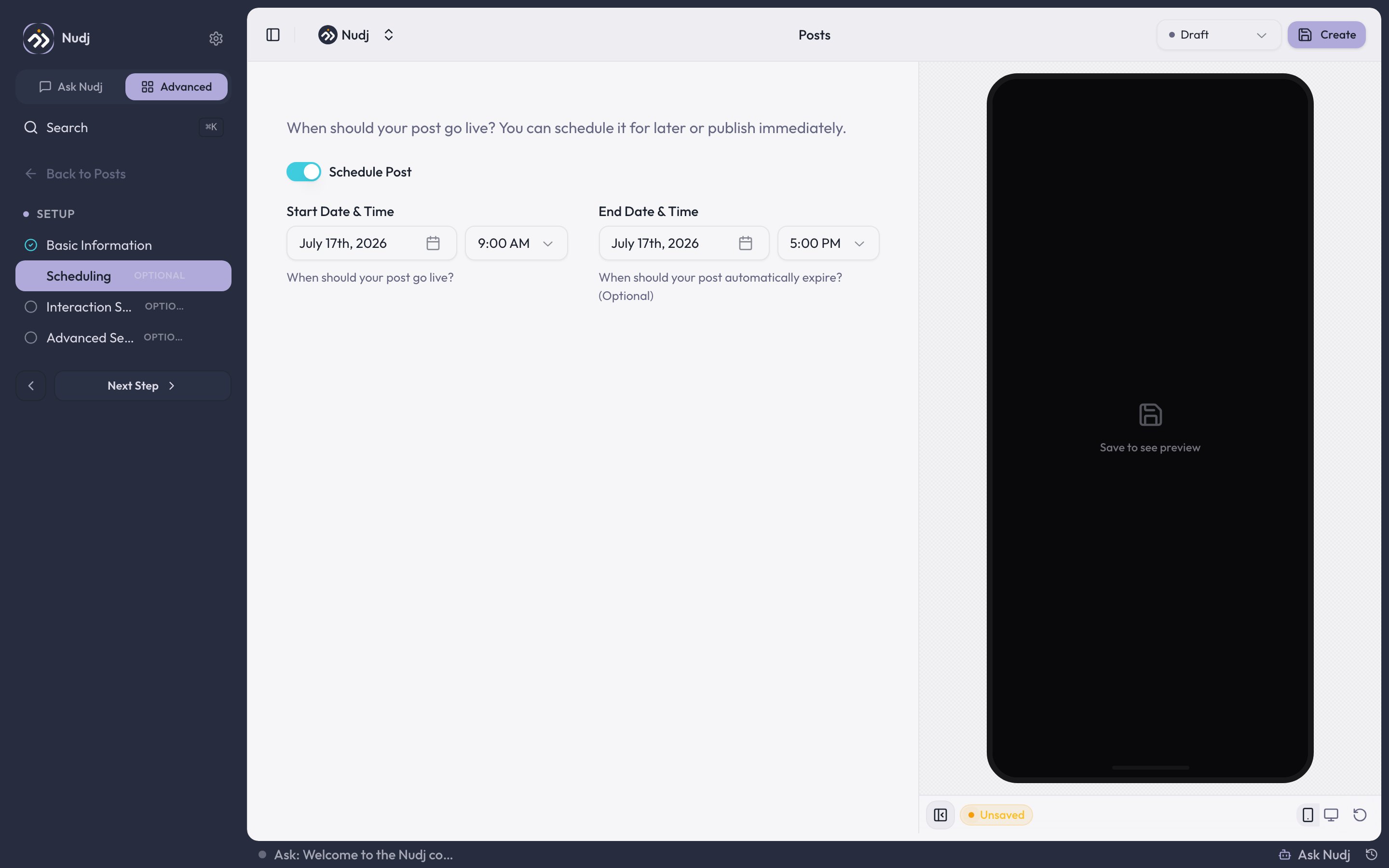 Set a **Start Date & Time** to publish later, and an optional **End Date & Time** to take the post down automatically. The end-date calendar greys out any day before your start date. That guard works by day, not by time, so a same-day end time that's earlier than your start time can still be entered. Saving catches it with a "Start date must be before end date" error.
Leave **Schedule Post** off and the post has no dates. The list shows it as **no dates set**, and a live post runs **live indefinitely**.
***
## Interaction Settings
Set a **Start Date & Time** to publish later, and an optional **End Date & Time** to take the post down automatically. The end-date calendar greys out any day before your start date. That guard works by day, not by time, so a same-day end time that's earlier than your start time can still be entered. Saving catches it with a "Start date must be before end date" error.
Leave **Schedule Post** off and the post has no dates. The list shows it as **no dates set**, and a live post runs **live indefinitely**.
***
## Interaction Settings
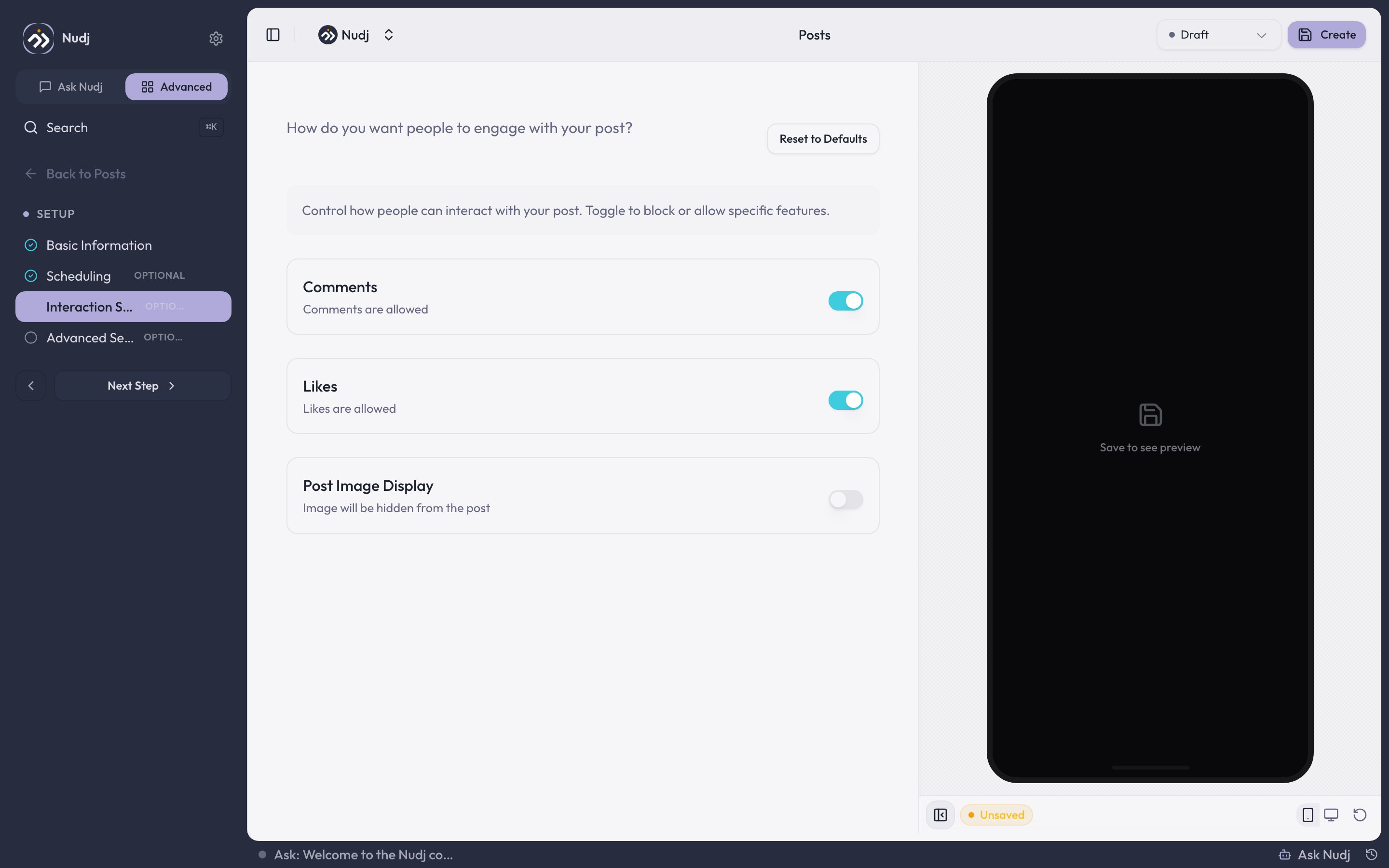 | Toggle | On | Off |
| ---------------------- | ----------------------------- | ----------------------- |
| **Comments** | Members can comment | Comments are blocked |
| **Likes** | Members can like | Likes are blocked |
| **Post Image Display** | Image is hidden from the post | Image shows on the post |
**Post Image Display currently does the opposite of what it says.** The member-facing post inverts this flag, so members see your image when the toggle is **off** and lose it when you turn it **on**. The helper text under the toggle in the studio describes the intended behaviour, not the actual one.
In practice: a new post starts **off**, so posts show their image by default, and **Reset to Defaults** returns it to off, which shows the image. Until this is fixed, read the toggle backwards and leave it **off** to keep your image visible.
Turn **Comments** off for one-way announcements (policy changes, legal notices) where you don't want a discussion thread to moderate.
***
## Advanced Settings
| Toggle | On | Off |
| ---------------------- | ----------------------------- | ----------------------- |
| **Comments** | Members can comment | Comments are blocked |
| **Likes** | Members can like | Likes are blocked |
| **Post Image Display** | Image is hidden from the post | Image shows on the post |
**Post Image Display currently does the opposite of what it says.** The member-facing post inverts this flag, so members see your image when the toggle is **off** and lose it when you turn it **on**. The helper text under the toggle in the studio describes the intended behaviour, not the actual one.
In practice: a new post starts **off**, so posts show their image by default, and **Reset to Defaults** returns it to off, which shows the image. Until this is fixed, read the toggle backwards and leave it **off** to keep your image visible.
Turn **Comments** off for one-way announcements (policy changes, legal notices) where you don't want a discussion thread to moderate.
***
## Advanced Settings
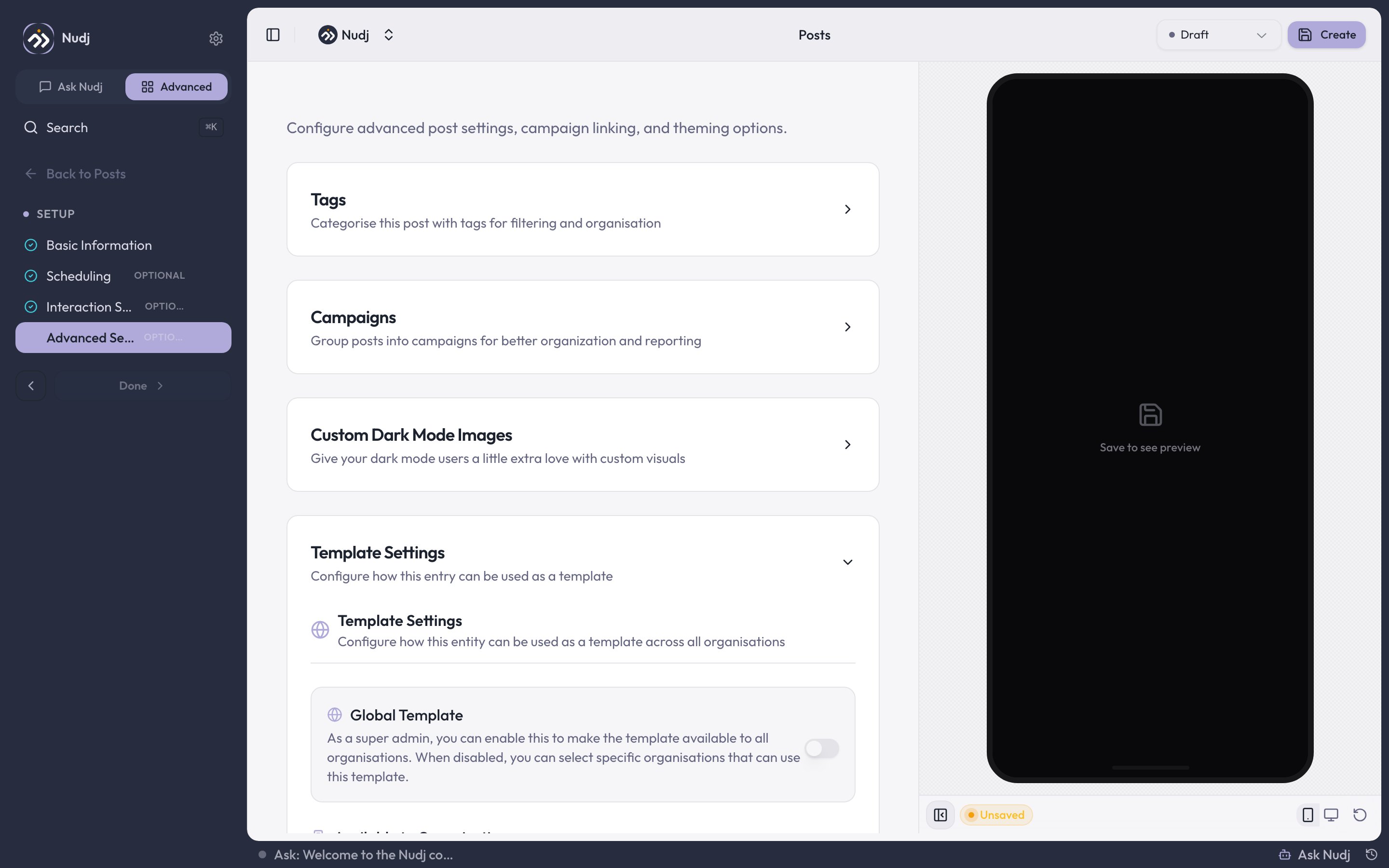 Categorise the post for filtering and organisation. Tags are organisation-scoped, so they're shared by every community in your org, and they show as a column on the posts list.
Group posts into campaigns for organisation and reporting. Campaigns are org-scoped and can be created inline.
Not currently functional. See the warning below.
Configure how this post can be reused as a template. Choose which organisations may use it via **Available to Organisations**. Super admins additionally get a **Global Template** toggle that opens it to every organisation at once; with that toggle off, the organisation picker applies.
**Don't use Custom Dark Mode Images on posts.** The separate dark upload is switched off in the post studio, so the control this section renders writes to the **same field as your Post Image**. Adding a "dark mode image" here replaces your regular post image instead of sitting alongside it. Posts currently use one image for both light and dark; leave this section alone until it's fixed.
***
## The preview panel
The right-hand panel renders your post exactly as members see it, by loading the real member-facing page in a frame.
**The preview does not update as you type.** It reflects the last **saved** version of the post, and refreshes only after you save. While you have unsaved edits, an amber **Unsaved** badge appears to tell you the preview is behind your changes.
On a brand new post the panel reads **Save to see preview** for as long as you're on the create screen, and pressing **Create** does not populate it. The post saves and you're taken back to the posts list a moment later, so re-open the post from the list to see its preview. From then on you're in the edit studio, where the preview is populated and refreshes on every save.
Starting from a **template** rather than **Start from blank** drops you straight into the edit studio, so the preview is there from the first screen.
Use the device toggles at the bottom of the panel to check phone and desktop widths.
***
## Moderating comments
The studio sidebar has a **Moderation -> Comments** section on saved posts (create the post first). Search comments, filter to top-level or replies only, show only comments with an image, delete individual comments, or **Export** them to CSV.
You can also export every comment in the community from **Engagement -> Posts -> Export comments** (desktop only, capped at 10,000 comments per export).
Moderation is **delete-only**. You can't reply to a comment from the admin panel, so if you want to answer a member you'll need to do it as a member in the community itself. Both the per-post section and the community-wide export need comment read permission, so some roles won't see them at all.
***
## When to use posts vs challenges vs achievements
| Need | Use |
| -------------------------------------- | -------------------------------------- |
| Announce a new drop / release | Post (featured) |
| Ask members to do something repeatable | Challenge |
| Recognise passive behaviour | Achievement |
| Send a private message to one member | Reward gifting with a "message" reward |
***
## Best practices
Keep posts short. 1-3 paragraphs + one image is usually enough. If it's longer, link out to a blog post or dedicated landing page.
Pair posts with challenges. The post announces a new thing, the challenge makes it actionable. Members see both in the feed together.
See [Posts Best Practices](/admin-guide/posts/best-practices) for more strategy notes.
Categorise the post for filtering and organisation. Tags are organisation-scoped, so they're shared by every community in your org, and they show as a column on the posts list.
Group posts into campaigns for organisation and reporting. Campaigns are org-scoped and can be created inline.
Not currently functional. See the warning below.
Configure how this post can be reused as a template. Choose which organisations may use it via **Available to Organisations**. Super admins additionally get a **Global Template** toggle that opens it to every organisation at once; with that toggle off, the organisation picker applies.
**Don't use Custom Dark Mode Images on posts.** The separate dark upload is switched off in the post studio, so the control this section renders writes to the **same field as your Post Image**. Adding a "dark mode image" here replaces your regular post image instead of sitting alongside it. Posts currently use one image for both light and dark; leave this section alone until it's fixed.
***
## The preview panel
The right-hand panel renders your post exactly as members see it, by loading the real member-facing page in a frame.
**The preview does not update as you type.** It reflects the last **saved** version of the post, and refreshes only after you save. While you have unsaved edits, an amber **Unsaved** badge appears to tell you the preview is behind your changes.
On a brand new post the panel reads **Save to see preview** for as long as you're on the create screen, and pressing **Create** does not populate it. The post saves and you're taken back to the posts list a moment later, so re-open the post from the list to see its preview. From then on you're in the edit studio, where the preview is populated and refreshes on every save.
Starting from a **template** rather than **Start from blank** drops you straight into the edit studio, so the preview is there from the first screen.
Use the device toggles at the bottom of the panel to check phone and desktop widths.
***
## Moderating comments
The studio sidebar has a **Moderation -> Comments** section on saved posts (create the post first). Search comments, filter to top-level or replies only, show only comments with an image, delete individual comments, or **Export** them to CSV.
You can also export every comment in the community from **Engagement -> Posts -> Export comments** (desktop only, capped at 10,000 comments per export).
Moderation is **delete-only**. You can't reply to a comment from the admin panel, so if you want to answer a member you'll need to do it as a member in the community itself. Both the per-post section and the community-wide export need comment read permission, so some roles won't see them at all.
***
## When to use posts vs challenges vs achievements
| Need | Use |
| -------------------------------------- | -------------------------------------- |
| Announce a new drop / release | Post (featured) |
| Ask members to do something repeatable | Challenge |
| Recognise passive behaviour | Achievement |
| Send a private message to one member | Reward gifting with a "message" reward |
***
## Best practices
Keep posts short. 1-3 paragraphs + one image is usually enough. If it's longer, link out to a blog post or dedicated landing page.
Pair posts with challenges. The post announces a new thing, the challenge makes it actionable. Members see both in the feed together.
See [Posts Best Practices](/admin-guide/posts/best-practices) for more strategy notes.