
Open-Ended
Free text responses for creative or detailed answers
Multiple Choice
Choose from options with single or multiple selections
Specific Answers
Users type answers that match exact text you define
Rating
Express preference on a visual scale
Select From List
Choose from long lists of predefined items
Select Images
Answer by clicking images—quiz or poll mode
Date Selection
Pick specific dates with directional constraints
Access Code
Verify completion with codes from external tasks or events
Range Selection
Pick a value on a spectrum with custom units
Open-Ended Questions
Users respond in their own words. These gather authentic insights and test real understanding, not just pattern recognition. Configuration:- Question text (the prompt)
- Optional description or context
- Optional light/dark theme images
- Optional validation (require an answer before submit)
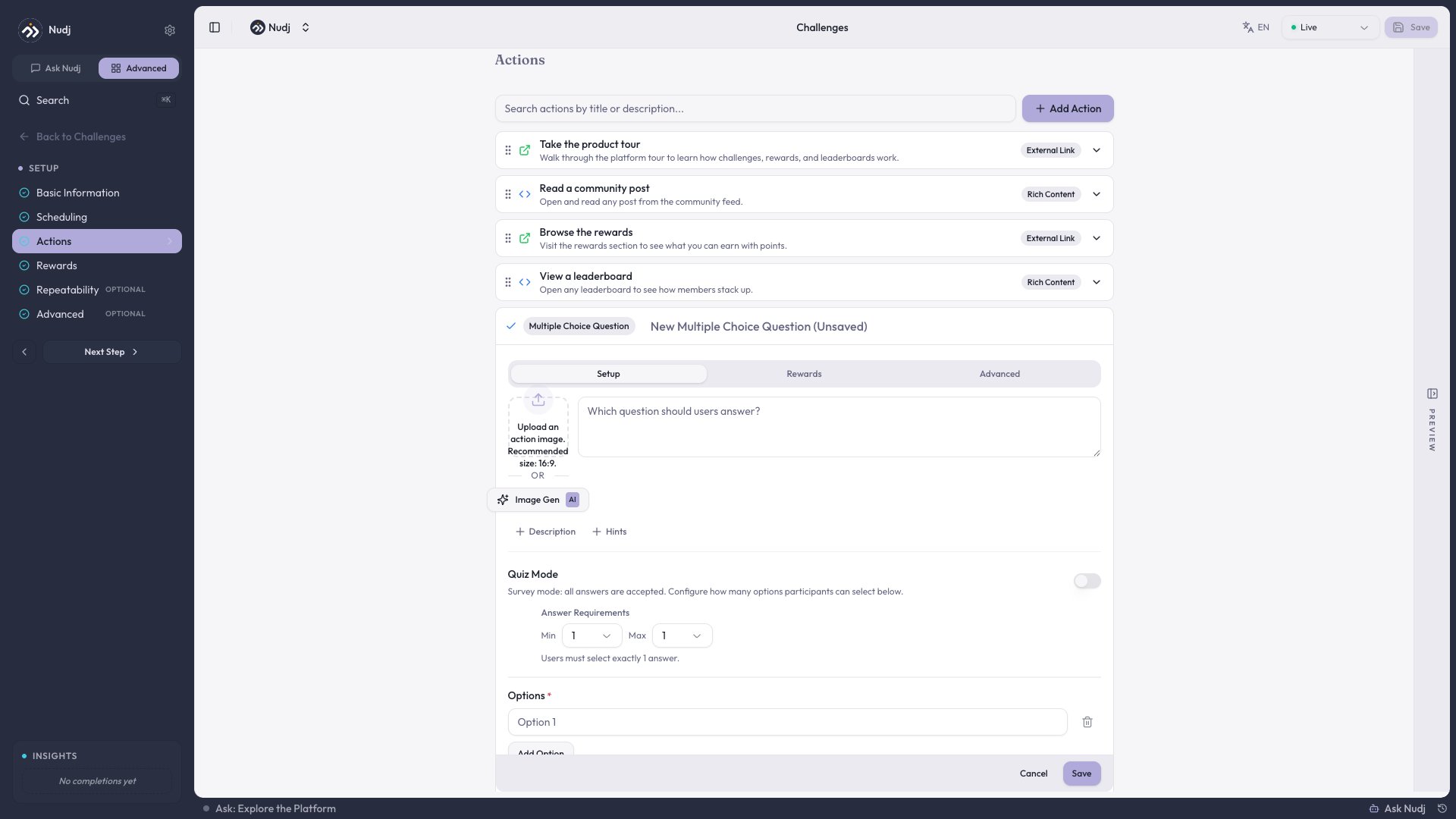
Multiple Choice Questions
Users pick from predefined options. Fast to score, easy to understand, works for almost everything. Configuration:- Quiz Mode
- Survey Mode
Mark which answers are correct.What you set:
- Add 2-8 answer options
- Mark which ones are correct (1+ answers)
- Min/max selection count auto-calculates from correct answers
- Require correct answer: Toggle whether users can progress without selecting a correct answer
- Type your options directly into the form
- Quiz mode: Check boxes next to correct answers. Toggle “require correct answer” if they must get it right to progress
- Survey mode: Use dropdown menus to set min/max selection limits
Specific Answer Questions
Users type their answer. The system checks it exactly against the correct answers you define. Good for fill-in-the-blank, terminology, product names, or any question requiring precise text matching. What you set:- Your question (e.g., “What’s the capital of France?”)
- All acceptable answers (e.g., “Paris”, “paris”, “PARIS”)
- Optional description, context, or images
- Matching is case-sensitive (“Paris” ≠ “paris”)
- Add every variation you want to accept upfront
- No fuzzy matching—must be exact
Rating Experience
Ask users to express a preference, satisfaction, or agreement. These feel less like tests and more like asking for opinions. Pick a visual style:Stars
5-star rating (classic and clear)
Thumbs
Up or down (binary approval)
Hearts
Like or love (playful preference)
Numbers
1-10 scale (numeric feedback)
Emoji
😞 to 😄 (emotional response)
Smile
Curved progression (intuitive)
Select From List
When you have many predefined options and need users to pick from them. Works great for “which product are you using?” or “pick your favorite feature.” Configuration:- Add your list of options (2 or more)
- Upload via CSV if you have hundreds of options
- Set minimum answers users must pick
- Set maximum answers allowed
- Single Selection
- Multiple Selection
Users pick ONE option. “What’s your favorite?”
Select From Images
Users answer by clicking images instead of reading text. Engages visual learners and tests what they actually remember. Two modes:- Quiz Mode
- Poll Mode
Images have right and wrong answers. Tests visual recognition and knowledge.
- Add 2+ images (you upload them or paste URLs)
- Each image gets a name/label
- Set how many images they must select (1, 2, etc.)
- Quiz mode: Mark which images are correct answers
- Poll mode: Leave blank (no right answer)
Date Selection
Users pick specific dates using a calendar picker. Perfect for scheduling, retrospectives, or timeline activities. Configuration:- Your date question
- Optional description or context
- Optional light/dark theme images
- Choose which dates are allowed:
- Past dates only
- Future dates only
- Any date
Secret Access Code
Verify that users completed an external task or attended an event. They enter a code to prove it. Configuration:- Your verification question (e.g., “Enter the code from the event”)
- Optional description
- Enter the valid codes (1 or more)
- Single-Use
- Reusable
Each code works once. Once someone uses it, it’s invalid. Good for limited-access events. Add codes manually.
Select Value In Range
Users slide a selector to pick a value on a spectrum. Perfect for estimations, preferences, or assessments. Feels more interactive than typing a number. Configuration:- Your range question (e.g., “Estimate how many team members you have”)
- Minimum value (e.g., 1)
- Maximum value (e.g., 10000)
- Step size (e.g., 1 = integers, 0.5 = half-steps)
- Unit of measurement (e.g., “people”, “dollars”, “minutes”)
- Unit placement (show before or after the number)
- Linear
- Logarithmic
Evenly spaced. Good for normal ranges (1-100).
Choosing the Right Question Type
| What you’re trying to do | Use this type |
|---|---|
| Quick knowledge check (30-60 seconds) | Multiple Choice with 2 options or Specific Answers |
| Test if they actually understand | Multiple Choice where you mark correct answers |
| Gather opinions and preferences | Rating or Select From List |
| Collect detailed written insights | Open-Ended (plan for admin review) |
| Verify they completed an external task | Access Code |
| Get estimations or numeric preferences | Range Selection (sliders feel better than typing) |
| Test visual recognition or learning | Select From Images |
Best Practices
Question Clarity
Users should understand what you’re asking in 5 seconds. “How many team members do you have?” beats “What is your organization’s human capital allocation?” Specific beats vague.
Match Difficulty to Context
Warm-up questions should be easy. Assessment questions can be harder. Easy questions early build confidence for harder ones later.
Provide Meaningful Feedback
For quiz-style questions, explain why an answer is correct or incorrect. Explanation matters more than the score. This builds understanding instead of just punishing wrong answers.
Images Boost Engagement
Questions with images get more engagement than text-only questions. If a question type supports images, adding them helps. Visual context clarifies what you’re asking.
Match Your Tone
Stars feel formal. Emoji feels playful. Thumbs feel casual. Match your community’s vibe. A professional financial community might use star ratings. A creative community might use emoji.
Mix Question Types
Five hard questions in a row exhausts users. Mix easy and hard. Mix question types. Variety maintains engagement.
Question actions work best when they match your actual learning objective and user context. Think about what you’re trying to learn from users, then pick the question type that gathers that information most naturally.
Questions are where passive viewers become active participants. Design them thoughtfully to create genuine learning and participation opportunities.