

Opening the calendar
From the challenges list view, click the Calendar tab (#1511).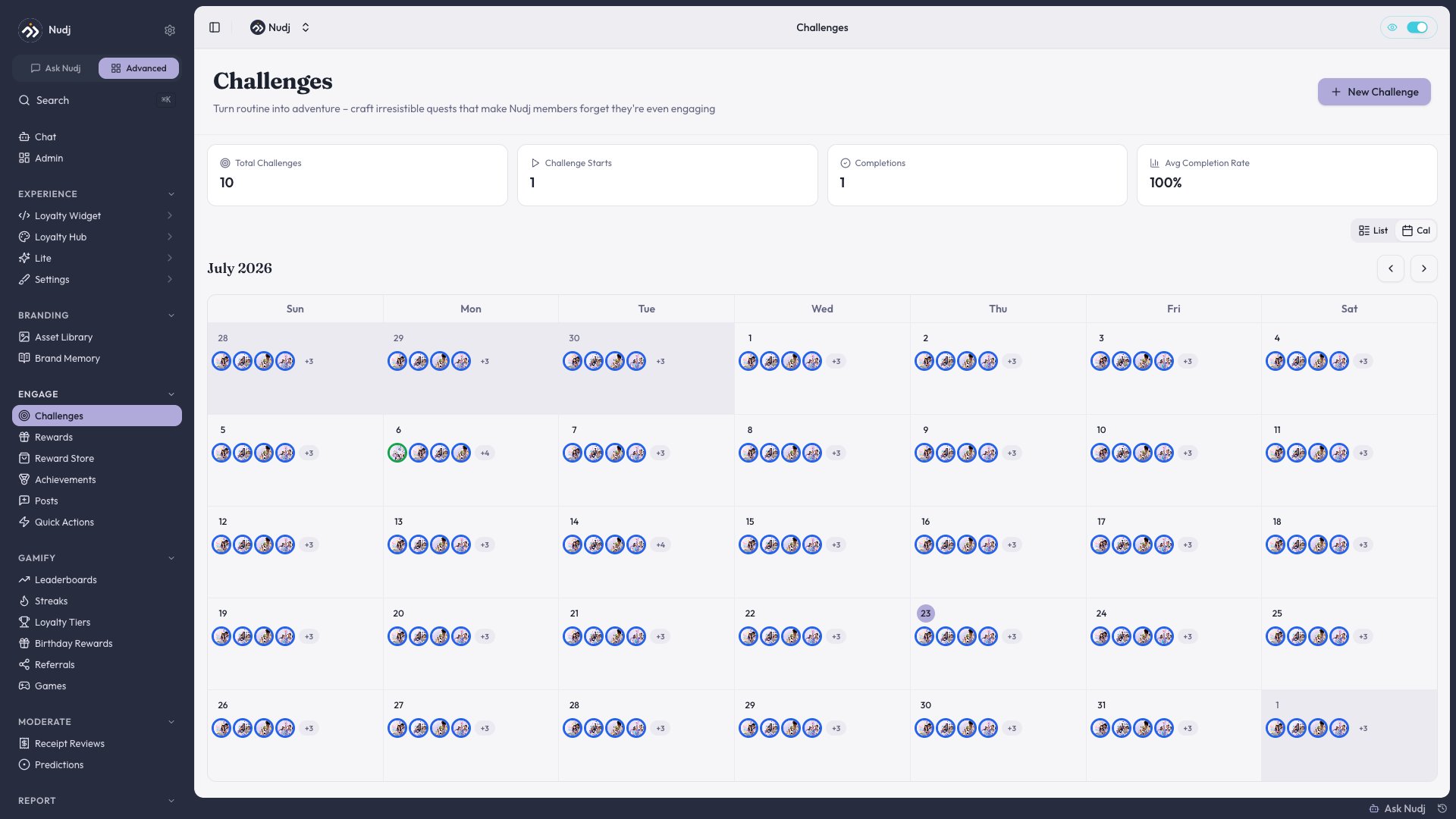
Calendar View: each challenge is a bubble on the month grid, with a per-day overflow indicator when several overlap.
Navigation
- Today button (#1150) jumps back to the current week / month.
- Arrows step back/forward by month.
- Click any bubble to open the challenge editor.
Timezone clarity
Every date in the calendar shows the timezone explicitly (#1505) — avoids the “oh wait, does this go live in my tz or the org’s tz?” ambiguity. Default timezone comes from your org settings (see General Settings). Individual challenges can override.Challenge indicators
The calendar uses colour-coded markers on each day to show challenge state at a glance: green for start, blue for running, red for end. Hover a day to see which challenges are involved.Date picker z-index
The calendar date picker (and campaign date picker, #1731, #1804) plays nicely with modals — no more z-index fights where the picker hides behind another dialog.Uses
Planning a quarter
Planning a quarter
Open calendar, switch to month view, see all scheduled challenges. Look for dead zones (no challenges) and over-packed weeks (3+ overlapping). Adjust.
Campaign coordination
Campaign coordination
Cross-reference campaigns with the calendar’s challenge markers to see which challenges fall inside vs outside a campaign window. Fix the boundaries.
Launch prep
Launch prep
Before a big launch, check the calendar for the launch week — avoid launching in a week with 5 other live challenges.