

How members redeem
An earned reward lands in the member’s Wallet. Opening it shows a Redeem button.Collect delivery details (if configured)
If the reward has Fulfillment Details, redemption starts by asking the member for them, one field at a time. Required fields must be filled before they can continue; optional ones can be skipped.
Confirm
The member confirms, and Nudj marks the reward redeemed.
See the reward
What they see next depends on the reward’s redemption format: a text code, a link, a barcode, a QR code, a Shopify discount, or a rich-text message. XP and Points Boosts don’t show a code, they activate automatically.
Delivery details are collected at redemption, never when the member earns or buys the reward. A member only fills them in the moment they claim.
The redeem-by deadline
The Use-It-or-Lose-It Date (set on the Dates step) is the deadline to redeem. After it passes, an unredeemed reward can’t be claimed: the Redeem button is disabled and the reward shows as expired.Where you confirm fulfilment
For rewards you deliver yourself (merch, event tickets, gift cards), open the reward, go to its Stats page, and select the Fulfilment tab: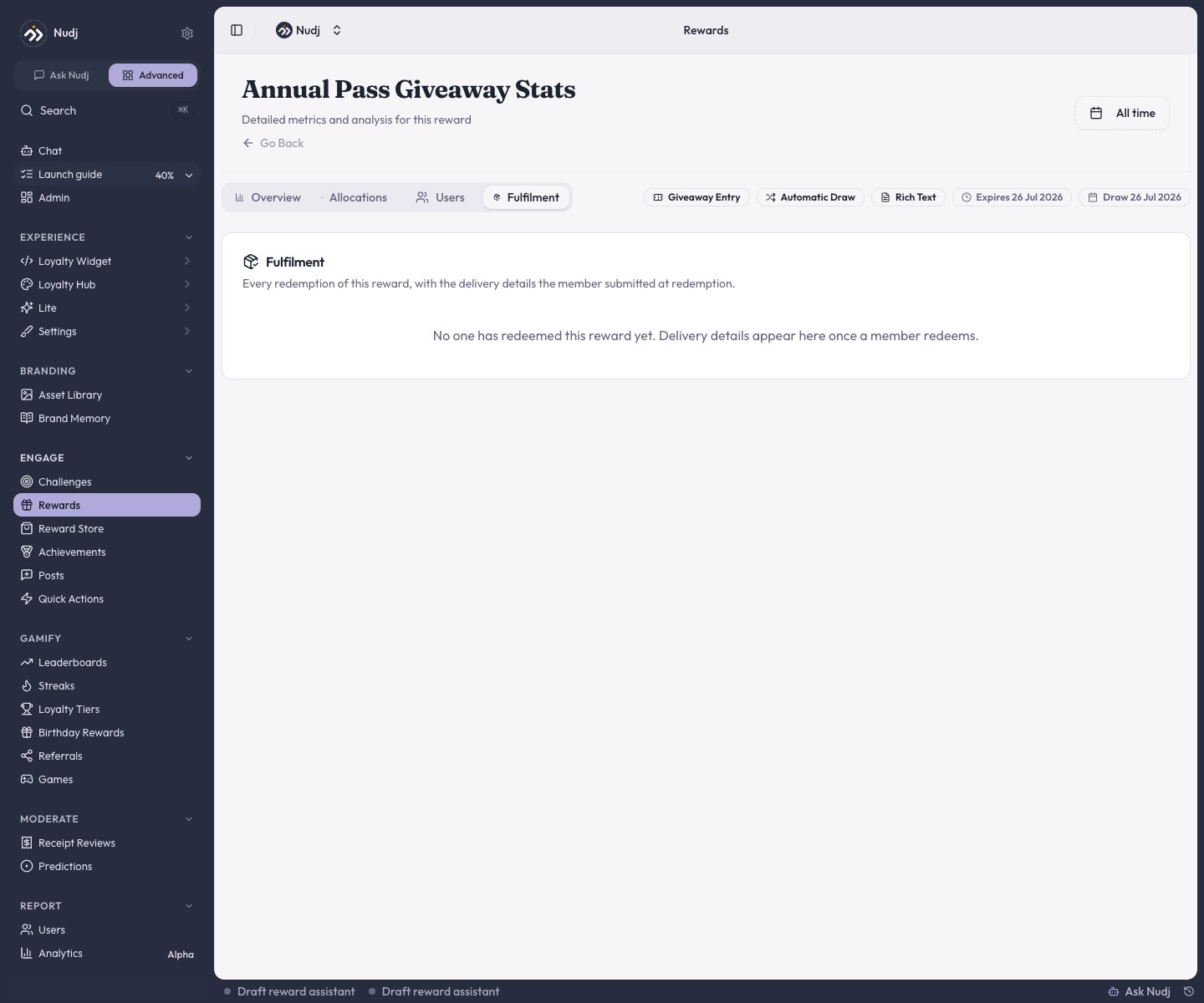
The Fulfilment tab on a reward's Stats page, before any redemptions.
The Fulfilment tab is a read-only record. It surfaces who redeemed and what they submitted so you can fulfil the reward in your own systems (ship the item, email the gift card). There is no “mark as fulfilled” toggle or status, and no export: Nudj shows you the details, you handle delivery out-of-band.
Because the rows contain member contact details, viewing the Fulfilment tab needs permission to read both rewards and members. A role without member-read access sees an error instead of the table.
Setting up what to collect
The fields on the Fulfilment tab come from the reward’s Fulfillment Details step. Add a field for each thing you need to deliver the reward.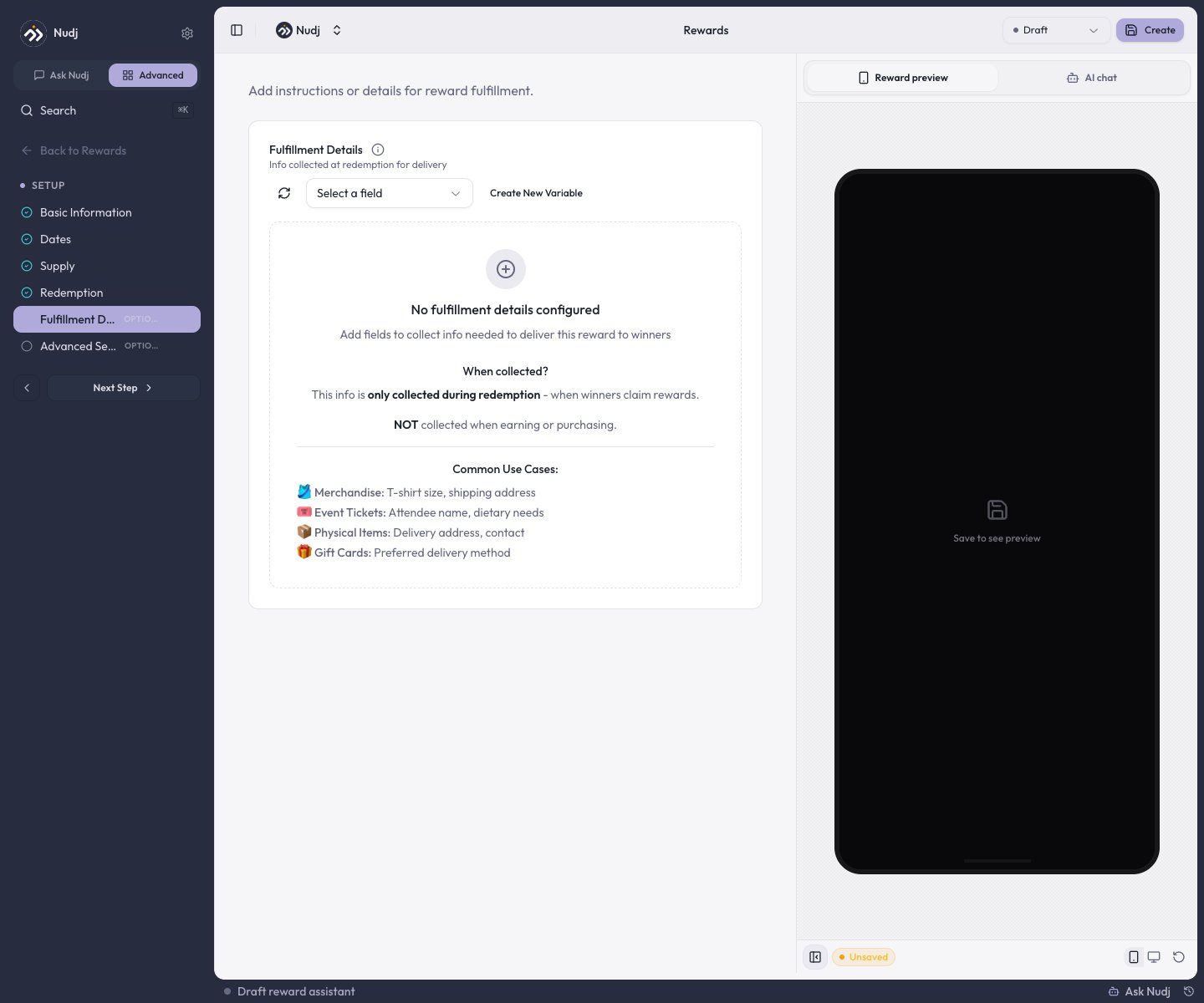
Fulfillment Details: the fields you add here are what members submit at redemption, and what shows on the Fulfilment tab.
Next steps
Create a reward
Set up redemption and fulfilment details.
Reward analytics
Allocations, redemptions, and timelines.
Reward types
Which rewards need redemption vs auto-apply.
The Reward Store
Let members buy rewards with points.